Microsoft Defender for Cloud – Get exemptions using REST API
This post is part of a series. Navigate to the parent post using this link:
In this post, I want to show you how to get (list) standard assignments (exemptions) using PowerShell and REST API.
First we need to authenticate to Azure and get an access token, we will use in our REST API calls:
# Connect to Azure interactively
Connect-AzAccount

$tenantId = (Get-AzContext).Tenant.Id
$subscriptionId = (Get-AzContext).Subscription.Id

# Get a new access token for the Azure Management API
$splat = @{
    Resource    = 'https://management.azure.com/'
    TenantId    = $tenantId
    ErrorAction = 'Stop'
}
$NewToken = Get-AzAccessToken @splat -AsSecureString
$NewTokenAsString = ConvertFrom-SecureString $NewToken.Token -AsPlainText

# consume the token in a REST API call
$headers = @{
    'Authorization' = "Bearer $NewTokenAsString"
     'Content-Type' = "application/json"
}
Next, we are going to get all standard assignments for the subscription of our current context. Context was set doing the authenticate part, and you can switch that up using _**Set-AzContext**_:
Also note that you can change the scope to management group, resource group or resource. Refer to the Microsoft Learn article to see other examples.
# List all standard assignments in the subscription - you can filter by managementgroup, resource group or resource if needed
# For more information, see https://learn.microsoft.com/en-us/rest/api/security/standard-assignments/list
$apiVersion = "2024-08-01"
$uri = "https://management.azure.com/subscriptions/$subscriptionId/providers/Microsoft.Security/standardAssignments?api-version=$apiVersion"
$response = Invoke-RestMethod -Uri $uri -Method Get -Headers $headers

# Display the results - we use fl here to show all properties, but you can format it as you wish
$response.value | fl
The output will show similar to this:
properties : @{displayName=temp-allow-ckj-test; description=testing to get via API; effect=Exempt; expiresOn=15/10/2025
22.00.00; exemptionData=; metadata=}
id : /subscriptions/SUBSCRIPTIONIDREMOVED/providers/Microsoft.Security/pricings/CloudPosture/securityenti
tydata/RESOURCEIDREMOVED/providers/Microsoft.Security/standardAssignments/aba1fa26-c7b9-4872-a03
5-ca8cb21a7136
name : aba1fa26-c7b9-4872-a035-ca8cb21a7136
type : Microsoft.Security/standardAssignments
In the above example, I have removed the subscriptionId and the resourceId for security reasons. The resourceId refers to the resource I had exempted using Defender for Cloud Recommendations overview in Azure portal (a security group in Entra Id – resourceId is the object id of this group. This could also have been the id of a user or service principal)
But the output is not showing all fields. This can be corrected in several ways, but I like to use JSON to show all the fields. Just use this simple command: $reponse= $response.value | ConvertTo-Json -Depth 10
This will make $response contains this information:
[
  {
    "properties": {
      "displayName": "temp-allow-ckj-test",
      "description": "testing to get via API",
      "effect": "Exempt",
      "expiresOn": "2025-10-15T22:00:00Z",
      "exemptionData": {
        "assignedAssessment": {
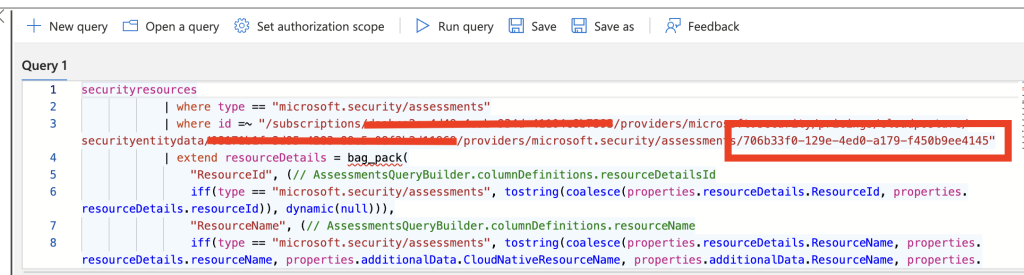
          "assessmentKey": "706b33f0-129e-4ed0-a179-f450b9ee4145"
        },
        "exemptionCategory": "Waiver"
      },
      "metadata": {
        "createdBy": "0ebf6d6a-b039-48ce-abdb-63a6713b813c",
        "createdOn": "2025-10-15T17:05:47.4929583Z",
        "lastUpdatedBy": "0ebf6d6a-b039-48ce-abdb-63a6713b813c",
        "lastUpdatedOn": "2025-10-15T17:05:47.4929586Z"
      }
    },
    "id": "/subscriptions/SUBSCRIPTIONIDREMOVED/providers/Microsoft.Security/pricings/CloudPosture/securityentitydata/RESOURCEIDREMOVED/providers/Microsoft.Security/standardAssignments/aba1fa26-c7b9-4872-a035-ca8cb21a7136",
    "name": "aba1fa26-c7b9-4872-a035-ca8cb21a7136",
    "type": "Microsoft.Security/standardAssignments"
  }
]
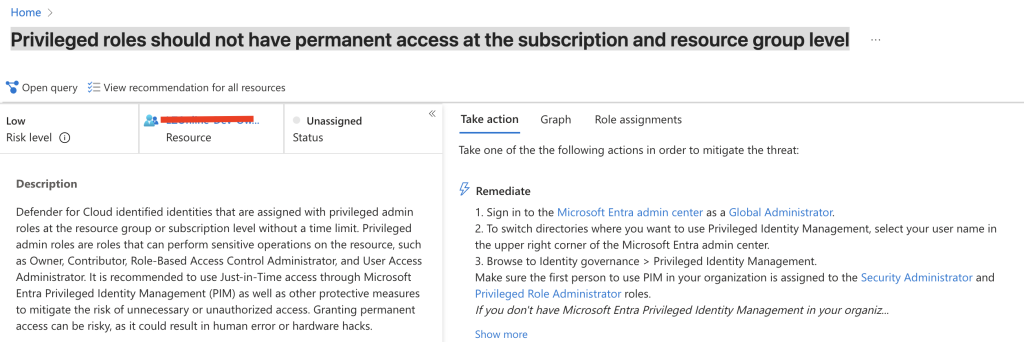
Now we can see the assessmentKey, which corresponds to a security assessment object id. In my test, I was using “Privileged roles should not have permanent access at the subscription and resource group level”. Below picture shows the recommendation in Azure Portal.
And if we select “Open query”, we can actually see the id of the assessment, that matches the assessmentKey from our JSON output in our exemption:
In the next post I will show how to create standard assignments (exemptions) using the same REST API endpoint
LINK MISSING HERE
Microsoft Defender for Cloud – Create exemptions using REST API
Have feedback on this post?
Send me a message and I'll get back to you.