
Azure Local – IaC – AVD – Azure DevOps – Service Connections
- Intro
- Configure Azure DevOps Service Connection with Federated Identity (Entra ID)
- Prerequisites
- Create App Registration in Entra ID
- Add Federated Credential to the App
- Assign App Registration as Owner on Azure Subscription
- Create the Service Connection in Azure DevOps
- Test the Service Connection
- (Optional) Test in Azure DevOps Pipeline
Intro
This article is part of a serie. You can navigate to the main page using this link:
This guide walks you through how to configure an Azure DevOps Service Connection using Federated Identity authentication (Workload Identity Federation) with Microsoft Entra ID, including:
- Creating the App Registration
- Federating it with Azure DevOps
- Granting Owner permissions on your Azure Subscription
- Creating and Testing the Service Connection
Configure Azure DevOps Service Connection with Federated Identity (Entra ID)
Prerequisites
- Azure DevOps project access (Your user should be member of Project Admin or Endpoint Creator group)
- Azure Subscription with owner access for your user (can be temporary granted, but you must be able to assign permissions to the Azure subscription)
- Permission to create/manage App Registrations in Entra ID (can be temporary granted)
Create App Registration in Entra ID
- Go to Entra.cmd.ms (Entra Portal) → App registrations
- Click + New registration
- Fill in the following:
- Name:
azure-devops-- - Supported account types: Accounts in this organizational directory only
- Leave Redirect URI empty
- Name:
- Click Register
- Save the:
- Application (client) ID
- Directory (tenant) ID
Add Federated Credential to the App
- In the App Registration, go to newly created app registration → Certificates & Secrets → Federated credentials
- Click + Add credential
- Fill in the fields:
- Federated credential name:
DemoConnection(This is just a friendly name, it can be whatever fits your needs) - Issuer:
https://vstoken.dev.azure.com - Explicit Subject identifier:
repo://ConnectionName
Example:
repo:contoso-org/infrastructure/DemoConnection - Audience:
api://AzureADTokenExchange
All of these inputs can be gathered by following the step “Create the service connection in Azure DevOps”. So you can go and start the creation of the service connection in Azure DevOps, come back here and paste the details, and then go back to finish creating the service connection.
Assign App Registration as Owner on Azure Subscription
- In the Azure Portal, Go to Subscriptions → choose your subscription
- Click Access control (IAM) → + Add → Add role assignment
- Fill in:
- Role:
Owner - Assign access to: User, group, or service principal
- Select members: Choose your App Registration (
`azure-devops-`-)
- Click Review + assign
Create the Service Connection in Azure DevOps
- Go to Azure DevOps → your project → Project Settings → Service connections
- Click + New service connection
- Choose Azure Resource Manager → Choose App Registation or managed identity (manual) → Select Workload identity federation → Next
- Fill in:
- Service Connection Name: (can be the Azure subscription name to match that)
- Directory (tenant) ID: (paste the Entra ID tenant ID that you got from the app registration creation)
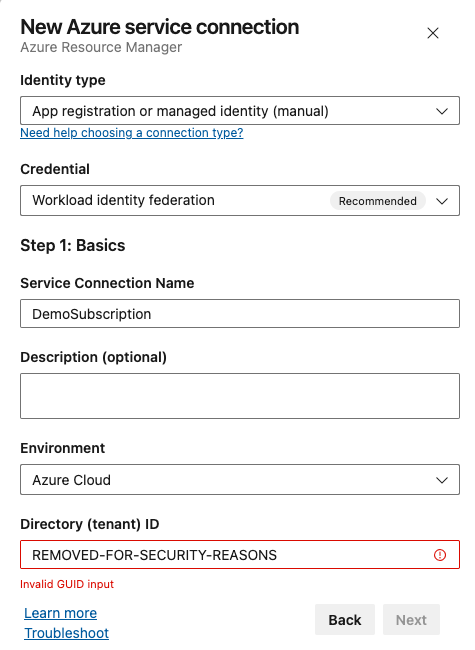
Click the Next button.
- Fill in:
- Subscription ID: (Must be ID of the subscription in Azure that you assigned permissions to)
- Subscription Name: (Can be the name of the subscription in Azure)
- Application (client) ID: (paste the Entra ID application ID that you got from the app registration creation)
- Optional: Check the box “grant access to permission to all pipelines”
IMPORTANT: Make sure the workload identity federation configuration have been configured on the app registration in Entra ID, otherwise verify will fail.
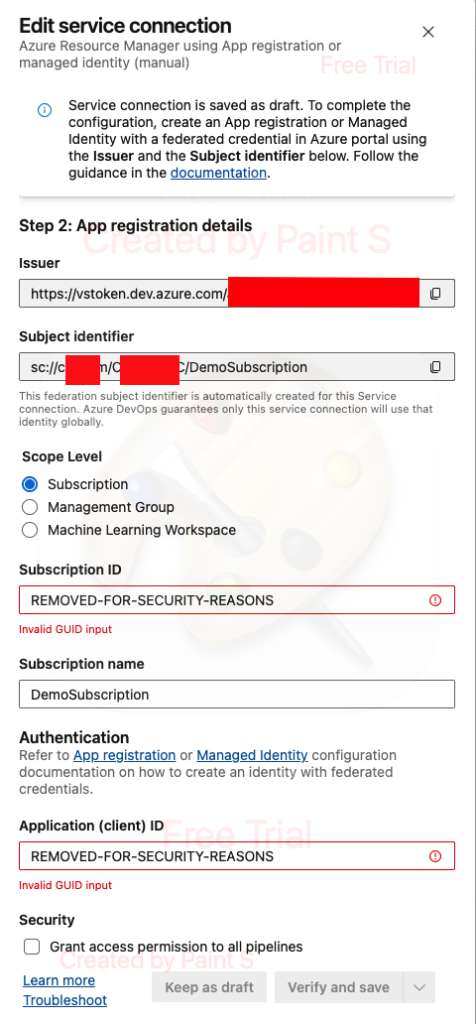
Click the Verify and save button.
Test the Service Connection
If the verify and save does not output an error, the service connection works. However, permissions test still needs to be done before we can ensure the connection is useful.
(Optional) Test in Azure DevOps Pipeline
You can test the connection directly in a pipeline. We will cover how to create pipelines and execute them, but for reference if you already know how to configure a pipeline, you can use this simple template to test if the newly created service connection can be used with a pipeline to create the resource group DemoRG in the East US region.
trigger:
- main

pool:
  vmImage: ubuntu-latest

steps:
- task: AzureCLI@2
  inputs:
    azureSubscription: 'DemoSubscription'  # Name of your service connection
    scriptType: 'bash'
    scriptLocation: 'inlineScript'
    inlineScript: |
      az group create --name DemoRG --location eastus
Have feedback on this post?
Send me a message and I'll get back to you.