Azure Local – How to keep stack up to date
- Intro
- How to
- Disclaimer
- Firmware and drivers
- Solution update
- Portal method:
- PowerShell method (recommended):
- Extensions on nodes
- Windows Admin Center
- Azure Update Manager
- Get notified about failures
Intro
Keeping Azure Local environments up to date is a critical part of maintaining a secure, stable, and high-performing hybrid infrastructure. As Azure Local continues to evolve, updates deliver not only security patches and bug fixes, but also new capabilities, performance improvements, and tighter integration with the broader Azure ecosystem. However, updating Azure Local isn’t just a “click and forget” operation—it requires planning, understanding update channels, and ensuring workloads remain available throughout the process. In this article, we’ll explore what it means to update Azure Local, why it matters, and the key considerations to ensure updates are applied safely and efficiently.
You can always find information about the latest updates and read release notes on Microsoft Learn: https://learn.microsoft.com/en-us/azure/azure-local/release-information-23h2
How to
Disclaimer
Do not rely on Windows OS Update on the nodes only. This method is not updating all cloud components and will result in an Azure Local stack that will run behind on solution updates and ultimately break the stack.
Read below steps to ensure your stack is properly updated. You should do patching every month then a new release comes out.
Firmware and drivers
There are 2 ways to get firmware and drivers updated on the Azure Local nodes:
- Supported hardware can use SBE – see more about requirements here: https://learn.microsoft.com/en-us/azure/azure-local/update/solution-builder-extension?view=azloc-2511
- Manual – for certain Lenovo servers I have written a guide about it: Azure Local – Lenovo – Firmware and driver patching – Christoffer Klarskov Jakobsen – Microsoft Architect
It is important to keep the physical servers up to date with firmware and make sure Windows OS is using the latest drivers.
Make sure you have valid warranty with hardware vendor to receive all required packages.
Solution update
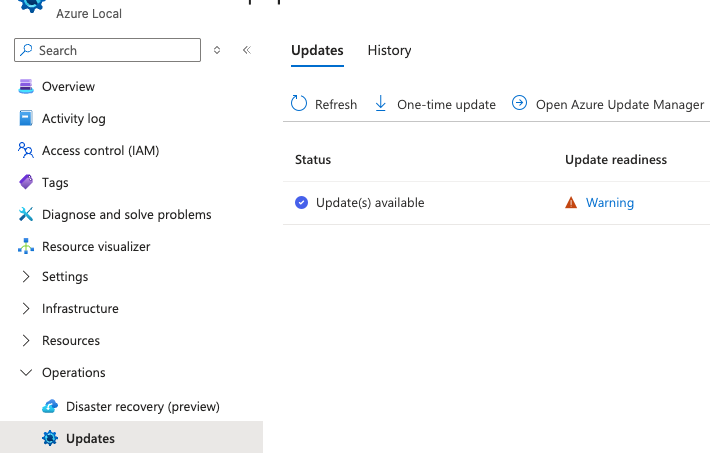
I like to use Powershell to update, but you can also start solution update from the Portal (Navigate to the Azure Local stack, select Updates and then One-time update).
Portal method:
Navigate to the Azure Local stack > Updates. Then select “One-time update”.
PowerShell method (recommended):
Here is how to run via PowerShell.
You want to validate if your stack is ready for an update. Use this command to see what updates are ready and not installed: (Picture below is just an example, State must be shown as ready
Enter-PSSession -ComputerName NODENAME
Get-SolutionUpdate | FL DisplayName, Description, ResourceId, State, PackageType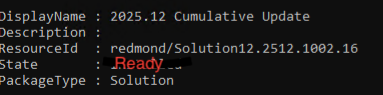
Then you take note of the ID of the update available for installation and use it for the next command that will get details about this update (in my example, update 12.2512.xxxx.xx was ready to be installed):
$Update = Get-SolutionUpdate –Id "redmond/Solution12.2512.1001.51"Now start the update:
Get-SolutionUpdate -Id "redmond/Solution12.2512.1001.51" | Start-SolutionUpdateIf you want to see that it is running, you can use this command to get a view of it being in running state: (picture show Installed and success in health state – the picture is just an example)
Get-SolutionUpdate -Id "redmond/Solution12.2512.1001.51" | ft Version,State,UpdateStateProperties,HealthState
Wait for it to be completed or failed and view outputs using the command:
Get-SolutionUpdate -Id "redmond/Solution12.2512.1001.51"
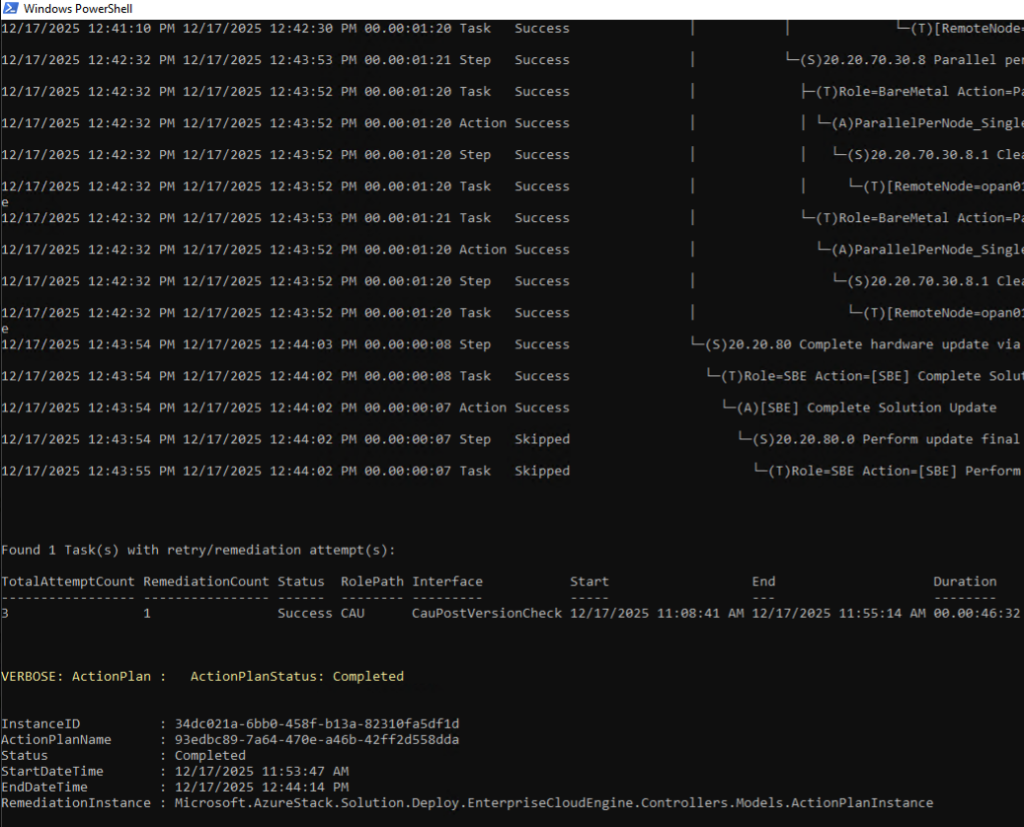
HINT: If you would like to see update running in details, use these commands to get details from the current run: (you get the GUID from the first command and use the latest GUID in the second command)
This will start a view in PowerShell that updates every 15 seconds and will display exactly which step in the update is running and will show an update tree.
Get-SolutionUpdate | Get-SolutionUpdateRun | sort TimeStarted
Start-MonitoringActionplanInstanceToComplete -actionPlanInstanceID 
If you hit any issues while performing solution update, you can refer to my guides about mitigation:
Azure Local – Common update issues – Christoffer Klarskov Jakobsen – Microsoft Architect
And others – use the search feature on my webpage to find relevant guides – I have written many of them because I have seen so many different update errors.
Extensions on nodes
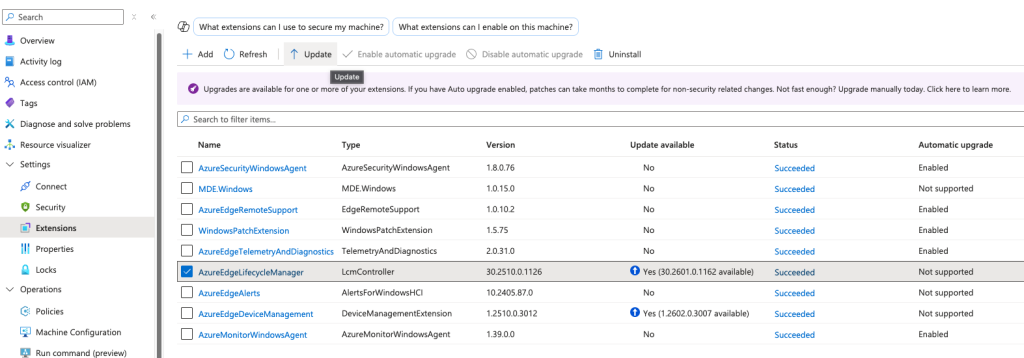
I like to make sure all extensions are updated after the solution update has finished. There are Az CLI commands to update extensions, but I find it easier to update from Portal because I get a good overview here. Navigate to the Azure Local Stack, then Machines and then go into each machine. Now you will see the picture from my example (we are viewing the Arc resource for the node):
Here you can simply select an extension and update it. Repeat for all extensions and move on the next node and repeat process.
Windows Admin Center
You most likely have installed Windows Admin Center on a physical or virtual server and use that to manage parts of Azure Local. Remember to keep that updated as well.
Select the settings icon in the top right corner when logged in to WAC.
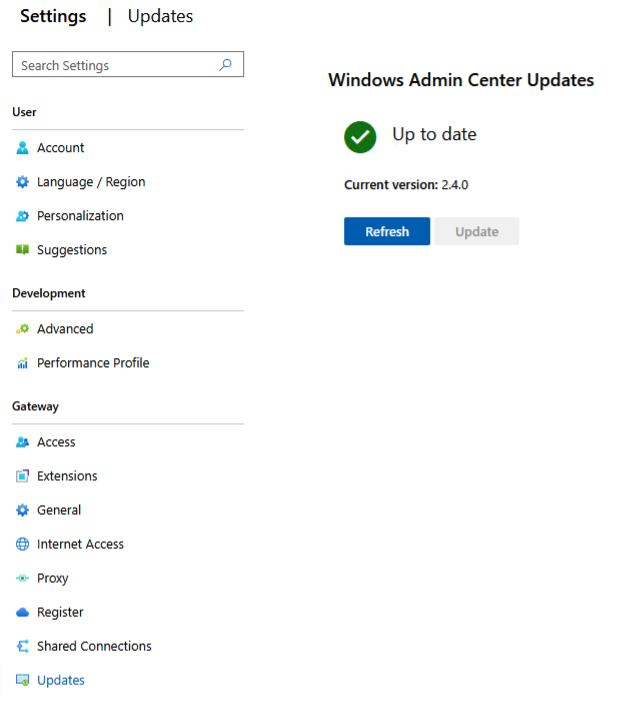
Next, go to Updates and check for any available update. Install any missing update here.
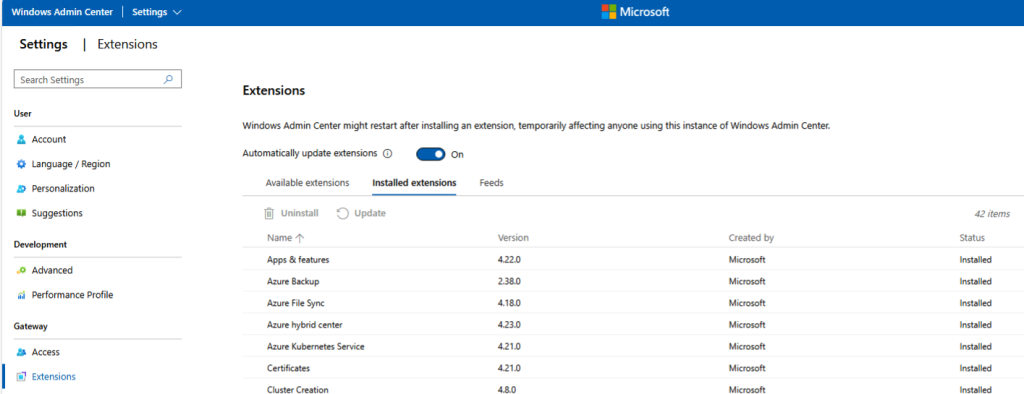
Also make sure extensions are auto-updated:
Azure Update Manager
You can use Azure Update Manager to schedule weekly patching of Azure Local stacks:
https://portal.azure.com/#view/Microsoft_Azure_Automation/UpdateCenterMenuBlade/~/asz_machines
You can easily set up schedules by using maintenance configurations.
Get notified about failures
Make sure to monitor any failed update. You can do that by making sure you have linked an action group via alert processing rule:
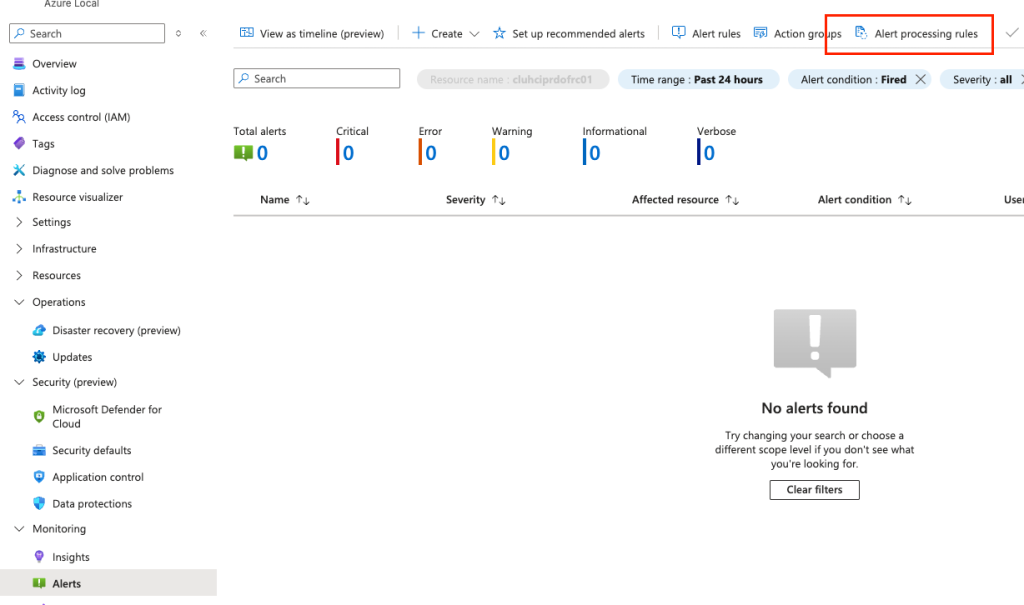
Just run through the wizard of creating an alert processing rule.
Leave scope at the default.
When asked, define these settings:
- Rule Settings
- Rule Type: Apply Action Group
- Then select an existing action group or create new one
- Scheduling
- Apply the rule: Always
Give the rule name and create it.
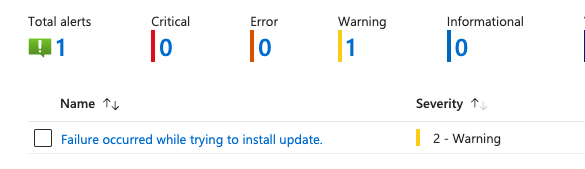
By using this method, you will get notified if an update failed, because Azure Local will trigger built-in alerts for this state:
Have feedback on this post?
Send me a message and I'll get back to you.