Azure Local - LENS
- Intro
- Where to get it
- Prerequisites (keep it simple)
- Import the workbook (Azure portal)
- First-run tips
- What you’ll get out of LENS
- Keep it updated
- Feedback / issues
Intro
If you manage more than one Azure Local instance, you already know the pain: you can find the data, but it’s scattered across different blades, subscriptions, and resource types.
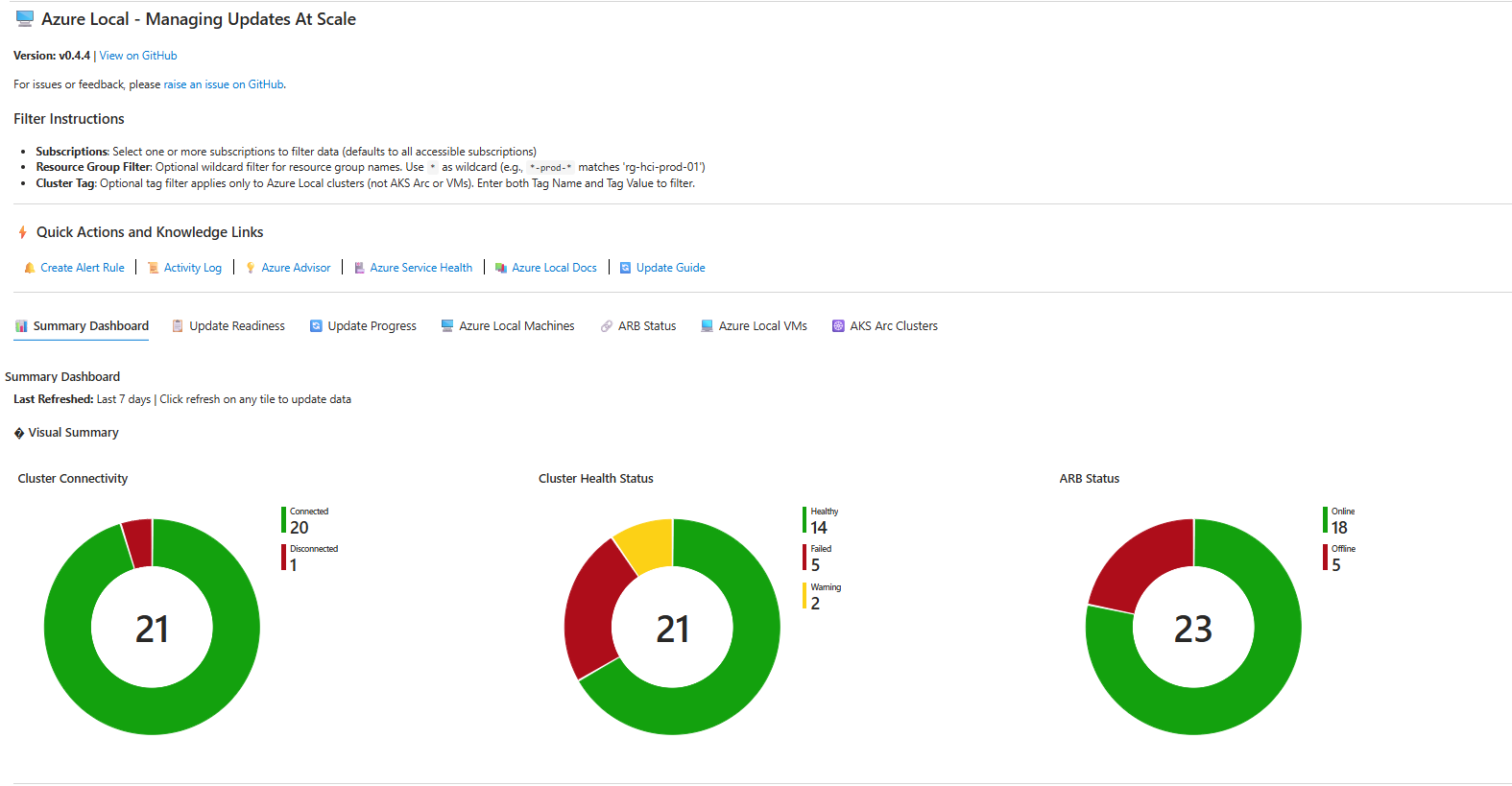
Azure Local LENS (Lifecycle, Events & Notification Status) is an Azure Monitor Workbook that gives you a fleet-level view of your Azure Local estate. Instead of opening each cluster one-by-one, you can compare clusters side-by-side, spot outliers fast, and drill into the areas that need attention (health, updates, machines, workloads, ARB status, and capacity).
This post is intentionally short: it’s meant to get you from “I heard about LENS” to “I’m looking at it in the portal” in a few minutes.
HINT The workbook is community-driven/open-source (not an officially supported Microsoft product). If you hit issues or want to request improvements, use the repo’s issue tracker.
Where to get it
- GitHub repo: https://github.com/Azure/AzureLocal-LENS-Workbook
- Latest workbook JSON (raw): https://raw.githubusercontent.com/Azure/AzureLocal-LENS-Workbook/refs/heads/main/AzureLocal-LENS-Workbook.json
Prerequisites (keep it simple)
You don’t need to deploy anything. You just need the right access and data sources:
- Azure portal access to Azure Monitor Workbooks.
- At least Reader on the Azure subscriptions/resources you want to see.
- If you want the capacity/performance trend views to light up, you’ll typically need Log Analytics data (and in some views, Prometheus metrics if you’re using those integrations).
HINT LENS queries across the subscriptions you can access in your Microsoft Entra tenant. If you manage customer environments via Azure Lighthouse, your delegated subscriptions can show up too.
Import the workbook (Azure portal)
- Open the Azure portal: https://portal.azure.com/
- Go to Monitor → Workbooks.
- Select + New.
- In the workbook editor, open Advanced Editor (the
</>button). - Switch to the Gallery Template tab.
- Replace the existing JSON with the contents of the LENS workbook JSON:
- Select Apply.
- Select Done Editing.
- Select Save (or Save As) and choose:
- Subscription
- Resource group
- Region
That’s it — once saved, you can treat it like any other workbook.
First-run tips
- Start with the global filters at the top (subscriptions and optional resource group filtering). If you have a large tenant, narrowing scope makes the workbook feel instant.
- Use the workbook as a starting point, not just a dashboard:
- Find a cluster that looks “off” (health, updates, connectivity, capacity)
- Click through the built-in portal links to go straight to the resource/blade that needs action
What you’ll get out of LENS
At a high level, expect:
- A fleet view (how many clusters, how many are healthy/connected, which versions you’re on)
- Update posture and progress (what’s pending, running, failing)
- ARB status (a common source of “why isn’t this showing up?” problems)
- Machines and extensions visibility (connected vs disconnected, failed extensions, and more)
- Workloads visibility (Azure Local VMs and AKS Arc clusters)
- Capacity / trend views to identify growth patterns and upcoming constraints
Keep it updated
Because LENS is shipped as JSON, updating is straightforward:
- Open your saved workbook.
- Enter edit mode → Advanced Editor.
- Paste the latest JSON from the repo.
- Apply → Save.
If you want to follow release notes and changes, the repo README tracks versions and what’s new.
Feedback / issues
- Repo (docs, releases, source): https://github.com/Azure/AzureLocal-LENS-Workbook
- Issues: https://aka.ms/AzureLocalLENS/issues
Have feedback on this post?
Send me a message and I'll get back to you.