Azure Local - Homelab - Part 7 - Connect Failover Cluster Manager without Active Directory
- Intro
- Security considerations
- Prepare the management server
- Connect to the cluster
- Browse the cluster
Intro
This article is part of a series: Navigate to series page
Failover Cluster Manager is a familiar and useful tool for browsing the health of a Windows Server Failover Cluster — and Azure Local runs on exactly that. In a traditional Active Directory environment, connecting is straightforward: Kerberos handles authentication transparently. But when running Azure Local without Active Directory (using local identities and KeyVault mode), the usual approach fails because there is no domain to authenticate against.
The trick is to mirror the local administrator account from the Azure Local nodes onto a separate management server, and then RDP into that management server using those credentials. Windows will pass the matching local credentials through to the cluster automatically — no domain required.
In this article I will walk through the full setup step by step.
Security considerations
Before proceeding it is worth being clear about what this approach involves from a security perspective.
The technique relies on Windows NTLM implicit pass-through authentication. When logged into the management server as a local user, Windows will silently reuse those credentials against any remote machine that has a local account with the same username and password. No credentials are entered a second time — they are just passed through automatically.
This introduces two things worth being aware of:
- Credential blast radius. The management server holds a local account that has the same password as the cluster admin on the Azure Local nodes. If the management server is compromised and credentials are extracted, an attacker gains direct access to the cluster. The management server must therefore be treated with the same security posture as the cluster nodes themselves — restrict who can reach it and keep it patched.
- NTLM authentication. Without Active Directory there is no Kerberos, so NTLM is what Windows uses here. NTLM is susceptible to relay attacks in unprotected network environments. Keeping the management server on a dedicated management network or VLAN significantly reduces this exposure.
Recommended compensating controls:
- Place the management server on a restricted management network, not on a broadly accessible segment
- Restrict RDP access to the management server by firewall rule (allow only from known admin workstations or a jump host)
- Use a strong and unique password — do not reuse this credential anywhere else
- Synchronise password rotation on both the management server and the Azure Local nodes at the same time
- Consider disabling the local mirror account on the management server when it is not actively in use
With those controls in place this is a workable and practical approach for AD-less Azure Local environments.
Prepare the management server
The management server can be either a workgroup machine or a domain-joined machine — it does not matter for this purpose. What matters is that it has a local user account whose username and password exactly match the local administrator account on the Azure Local nodes.
Create a matching local user
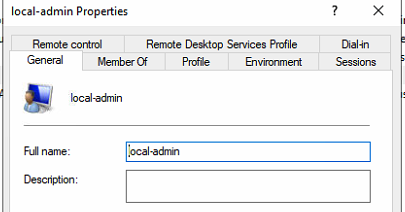
On the management server, create a local user that mirrors the account defined on the Azure Local nodes during deployment (see part 5):
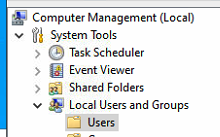
- Open Computer Management → Local Users and Groups → Users
- Right-click Users and select New User…
- Enter the same username and password that was configured on the Azure Local nodes
- Uncheck User must change password at next logon
- Click Create
Add the user to Remote Desktop Users
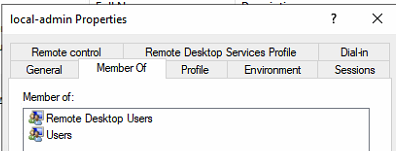
So we can RDP into the management server as this local user, add the account to the Remote Desktop Users group:
- Still in Local Users and Groups, open Groups
- Double-click Remote Desktop Users
- Click Add… and add the newly created local user
- Click OK
Install Failover Cluster Manager
Install the Failover Cluster Manager RSAT feature on the management server:
Add-WindowsFeature -Name RSAT-Clustering-Mgmt, RSAT-Clustering-PowerShellOr install it via Server Manager → Add Roles and Features → Features → Remote Server Administration Tools → Failover Clustering Tools.
Connect to the cluster
RDP into the management server as the local user
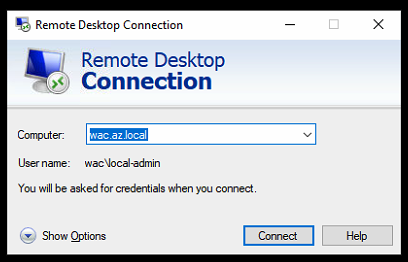
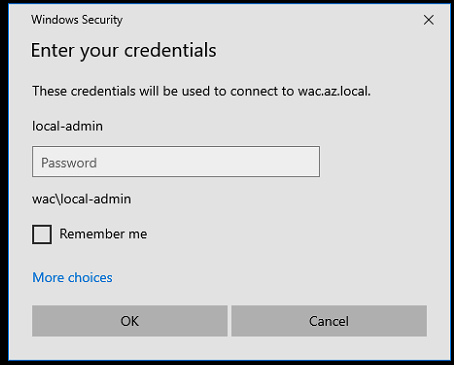
Open a Remote Desktop connection to the management server and log in with the local user account we just created — the one whose credentials match the Azure Local nodes.
HINT
Make sure to log in as
.\<username>or<managementservername>\<username>to explicitly target the local account and not a domain account.
Open Failover Cluster Manager and connect
Once logged in to the management server:
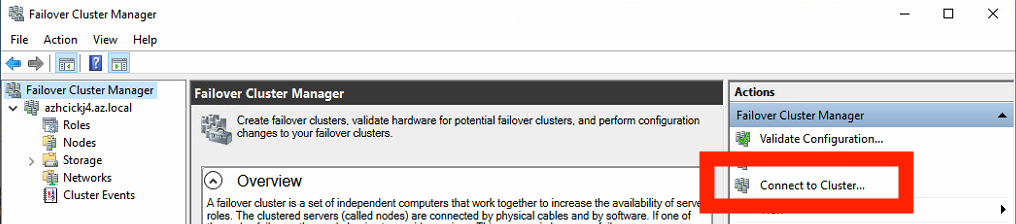
- Open Failover Cluster Manager
- In the right-hand pane, click Connect to Cluster…
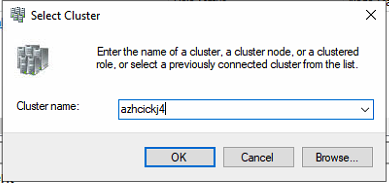
- Enter the name or IP address of the Azure Local cluster
- Click OK
Because the session on the management server is running under credentials that exactly match the local accounts on the Azure Local nodes, Windows passes the authentication through without any prompts.
Browse the cluster
We can now explore the cluster just as we would in an AD-joined environment — roles, nodes, storage, and disks are all visible and accessible.
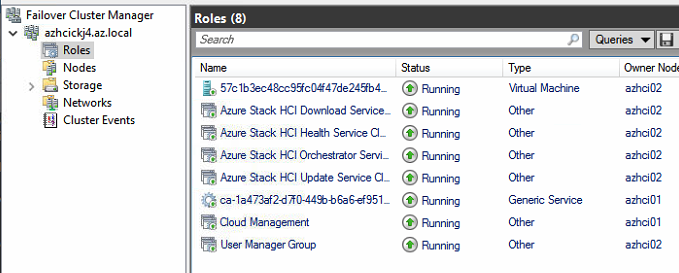
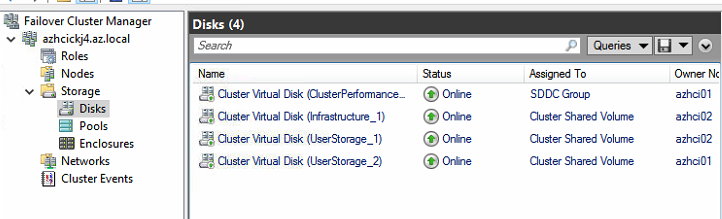
Final remark: if the cluster credentials on the Azure Local nodes are ever changed (for example, as part of rotating the local admin password), remember to update the matching local user on the management server at the same time — otherwise the pass-through authentication will stop working.
Have feedback on this post?
Send me a message and I'll get back to you.