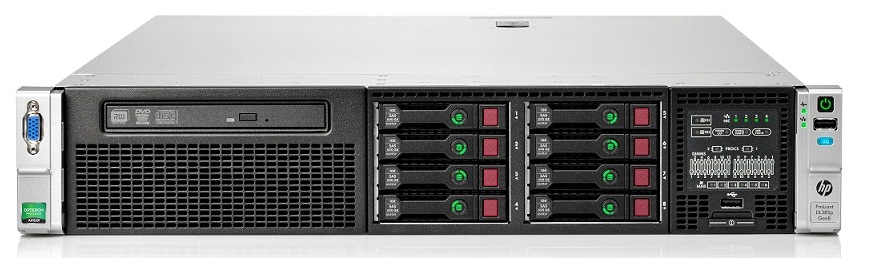
Azure Local - Homelab - Part 2 - Configuration pre-requisites
- Intro
- OS on physical hardware
- Networking
- Prepare processor for nested virtualization
- Prepare for VLAN trunking
- Active Directory
- Create Azure Local virtual machines in Hyper-V
- Prepare subscription in Azure
- Register nodes to Azure Arc
Intro
This is part of a series about my new 2026 homelab. I encourage you to read part 1, where I describe some of my design decisions. In this blog post I tell about my initial configuration and what I had to configure before Azure Local deployment was successful. This post will not outline how I deployed Azure Local on the virtual system, only all pre-requisites I had to go through to get Azure Local to deploy. In next post I will write about my configuration in the Azure Local deployment wizard.
Reference from Microsoft Learn: Deploy a virtual Azure Local system
UPDATE 2026-05-09:
I have published an article about how I installed a new stack using the method without Active Directory; Local Identities with Azure KeyVault. Read about it here: part 4
OS on physical hardware
I installed Windows Server 2022 Datacenter on the physical server. I will not cover the installation process but tell about it using bullets. And why did I chose to not use Windows Server 2025; I did not want to spend time modifying the installer, and because my server did not have physical TPM and lacked UEFI boot support, I chose 2022 edition that supports legacy boot mode and does not require TPM to install.
Here is what I did do:
- Downloaded Windows Server 2022 ISO (I have access to Visual Studio subscription where I can download evaluations)
- Prepared boot USB using Rufus (remember to chose MBR boot record if using old hardware like me)
- Booted the server to the Windows installation and ran the wizard
- Logged into the server after installation
- Connected physical network adapters to my local network
- Enabled RDP for remote management on local network
- Installed Hyper-V server role
Networking
HINT
3 Separate Intents does not appear to be an option in version 2604. But after complete deployment, you could reconfigure networking, and built your own intents. Follow my guide about creating Network ATC Intents, to learn how to.
Even through I did not chose to purchase hardware that supported using multiple physical nodes and do the proper networking on the physical layer, networking is still a crucial part of the underlying configuration of Azure Local.
I wanted to simulate a “custom” configuration as Microsoft call it, where we have 3 separate intents:
- Management
- Compute
- Storage
Why 3 intents?
Each “intent” has its own traffic pattern:
Management intent:
- Azure Arc, cluster management, monitoring, backups
- Low bandwidth, but must be reliable
- You don’t want admin access competing with heavy data traffic
Compute intent:
- VM traffic, east-west and north-south
- Latency-sensitive
- Scales with workload demand
Storage intent:
- Storage Spaces Direct (S2D) replication
- Extremely bandwidth-heavy and latency-sensitive
- Can easily saturate links if mixed with other traffic
By splitting intents, Azure Local can optimize each network path for what it actually does.
Configure networking in Hyper-V
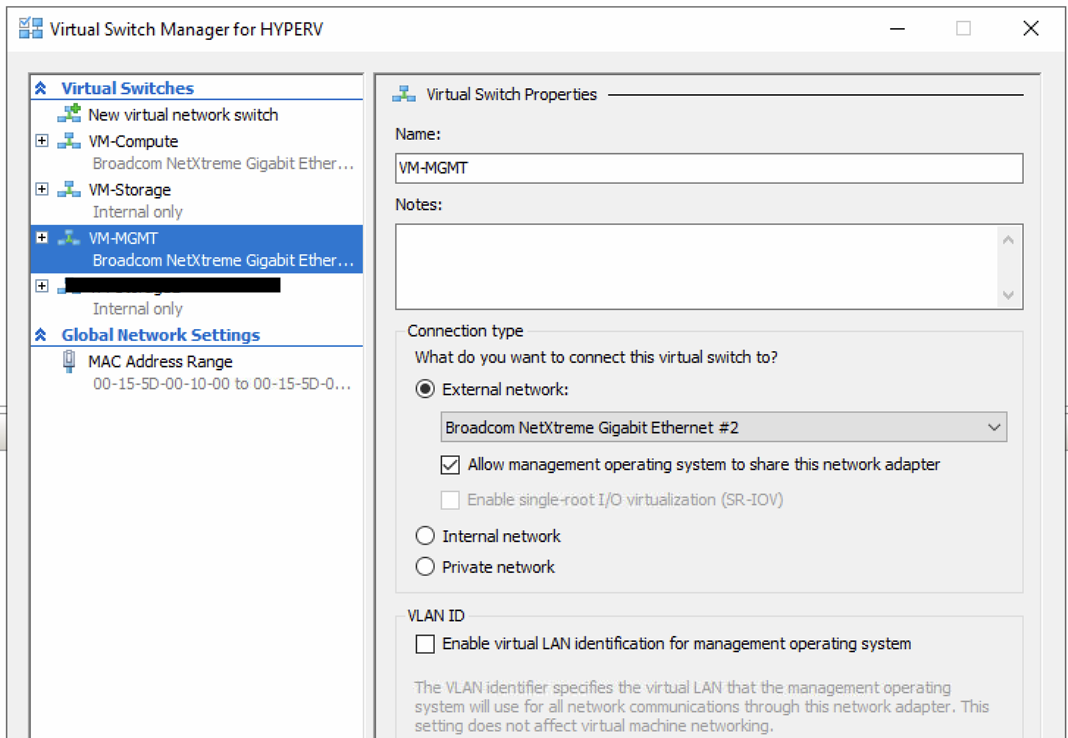
Management:
For Management I created an external VM Switch and allowed it the operating system to share that network adapter.
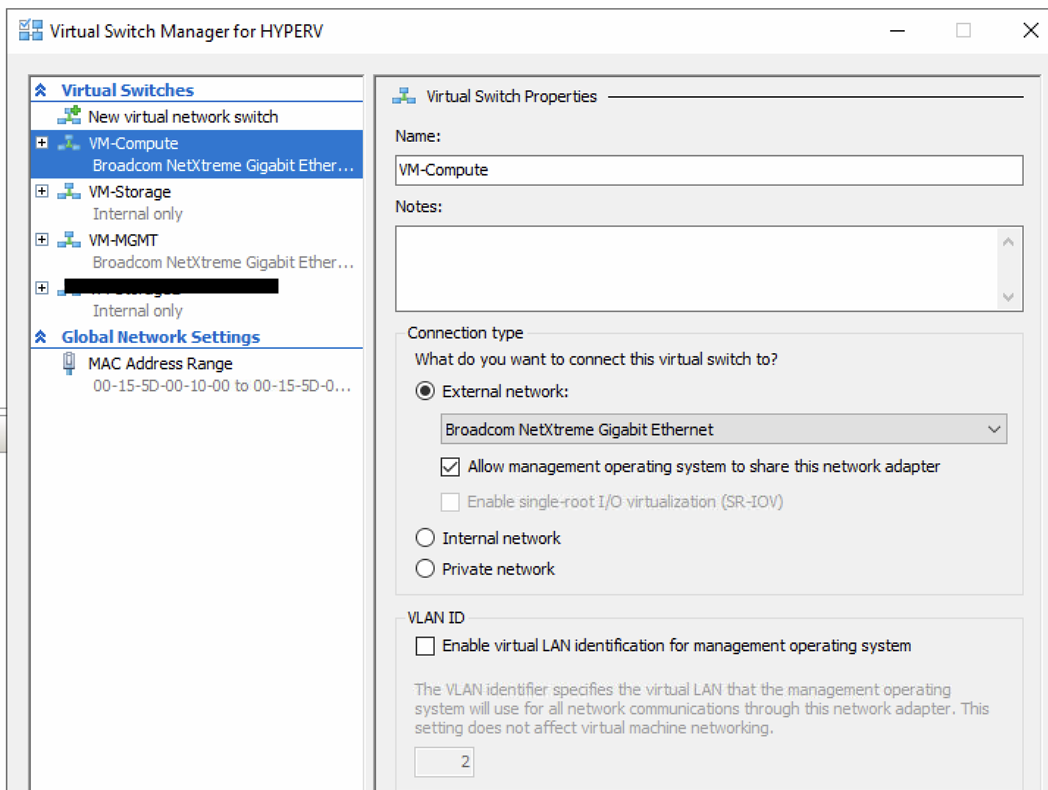
Compute:
For Compute I created an external VM Switch without letting the operating system share it.
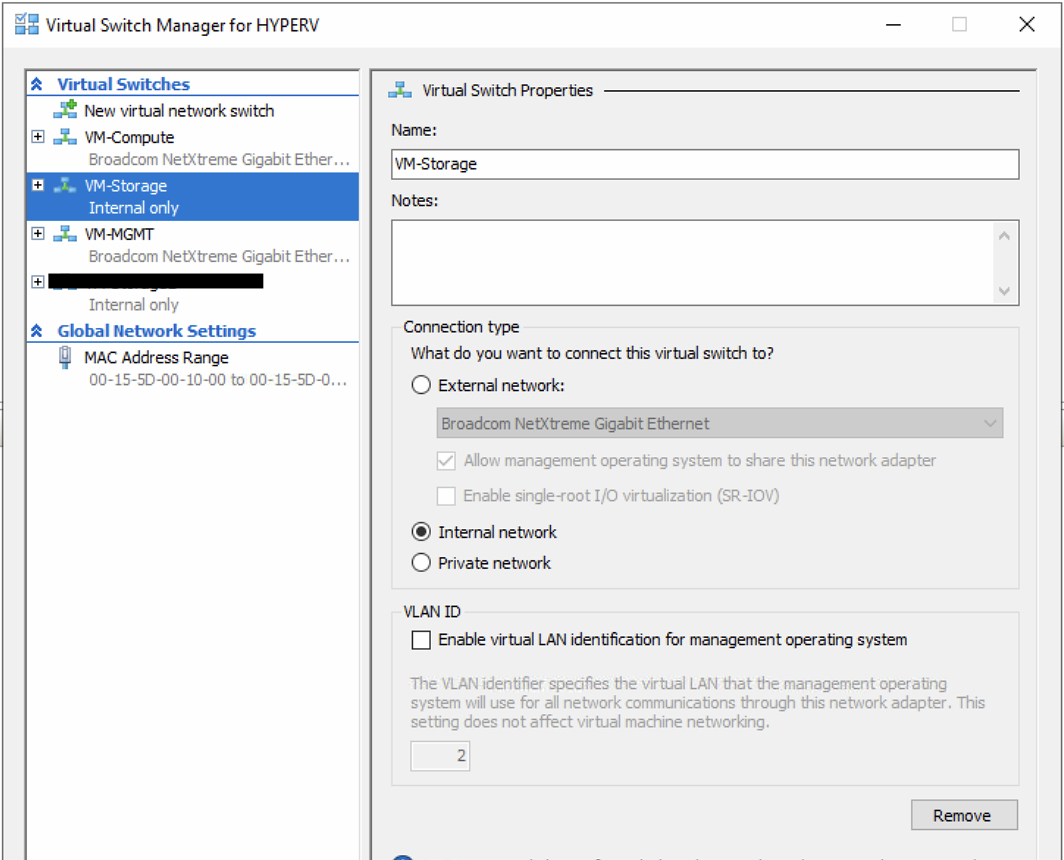
Storage:
For Storage I created an internal VM Switch. Storage should never communicate outside the stack, not in prod or demos.
Prepare networking for Azure Local nested virtualization
Even through the Microsoft Learn article mentions it, I was under the impression that I only needed to prepare for nesting, once the Azure Local stack was deployed. However, I discovered that doing the pre-installation validation of Azure Local, it creates a test VM switch and tries to communicate the DNS server for each of the 6 infrastructure IPs that we give the Azure Local deployment wizard (We have not covered Azure Local installation yet).
So long story short, just use these commands now before installing Azure Local, and safe yourself a huge pain trying to figure out why pre-deployment wizards fails because it cannot do DNS resolution on the 6 infrastructure IP addresses.
Set-VMNetworkAdapter -VMName azhci01 -MacAddressSpoofing On
Set-VMNetworkAdapter -VMName azhci02 -MacAddressSpoofing On
Prepare processor for nested virtualization
Run these commands:
Set-VMProcessor -VMName azhci01 -ExposeVirtualizationExtensions $true
Set-VMProcessor -VMName azhci02 -ExposeVirtualizationExtensions $true
Prepare for VLAN trunking
Run these commands:
Set-VMNetworkAdapterVlan -VMName "azhci01" -Trunk -AllowedVlanIdList "711,712" -NativeVlanId 0
Set-VMNetworkAdapterVlan -VMName "azhci02" -Trunk -AllowedVlanIdList "711,712" -NativeVlanId 0
Active Directory
If you chose to work with the “old fashion” way, you chose to deploy Active Directory somewhere. Keyvault is also still i preview, so most production deployments would still go with Active Directory method. I just installed Active Directory on a small virtual server on my physical server and did the whole AD config inside that Windows VM. Active Directory deployment is out-of-scope for this series, but it is pretty straight forward, just make sure the IP address you give your domain controller(s), is static and not changing, because later when you deploy Azure Local, DNS addresses cannot be changed on the MOC.
Here is however a few key things you have to do in Active Directory before you can start deploying Azure Local:
- Create LCMUser for the cluster in AD
- This user should be created for each Azure Local stack
- Create OU in AD for your Azure Local Stack (The OU must be pre-created before issuing the next command)
- Install required PowerShell module
Install-Module AsHciADArtifactsPreCreationTool -Repository PSGallery -Force
- Run the Azure Local AD object prepare command. You input the name/password for the LCMUser, and remember to change the AsHciOUName to the OU, in the command before running it.
New-HciAdObjectsPreCreation -AzureStackLCMUserCredential (Get-Credential) -AsHciOUName "OU=HCI,DC=az,DC=local"
- Open Group Policy Management, locate the OU you created for your Azure Local stack, and disable inheritance (enable block mode)
All above is known pre-requisites before Azure Local deployment will succeed.
Create Azure Local virtual machines in Hyper-V
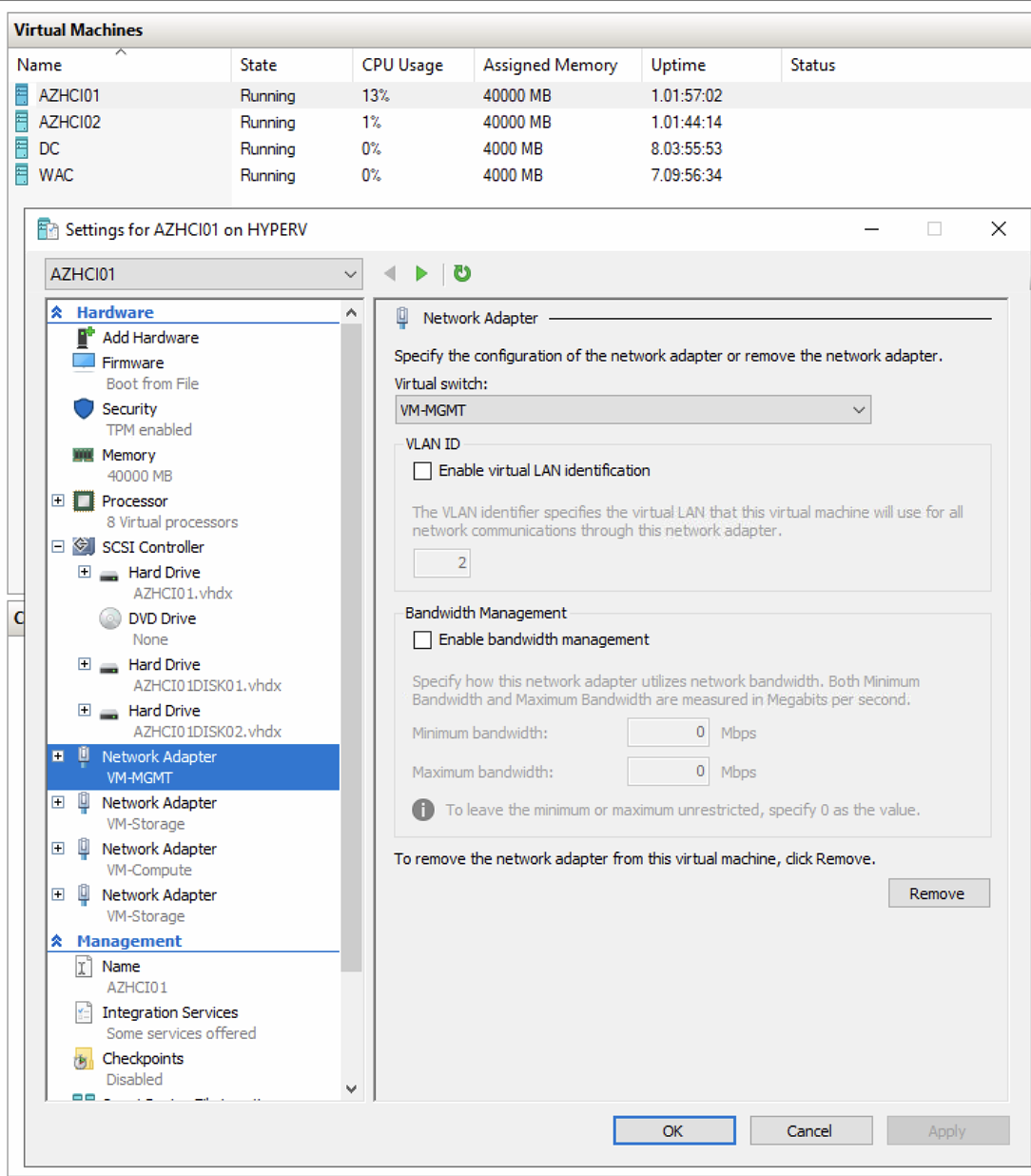
All requirements on the physical site of the deployment is now done, and it is time to create 2 virtual Azure Local nodes. Here is what I did:
- Created 2 identical VMs
- Each with 8 vCPU
- 40 GB RAM per node
- 1 management, 1 compute and 2 storage network adapters per node
- vTPM enabled (and secure boot enabled)
- Mounted ISO with Azure Local installer
- Installed Azure Local on each node
HINT: DO NOT run Windows update on the virtual azure local nodes after installing.
DO NOT join to Active Directory
HINT: The only settings you should configure at this point is:
- IP address and DNS server (Point to DC server you deployed if you use AD model)
- Hostname update
Prepare subscription in Azure
Register required resource providers
Use these command to register all required resource providers on the subscription you have chosen for your Azure Local deployment:
Register-AzResourceProvider -ProviderNamespace "Microsoft.HybridCompute"
Register-AzResourceProvider -ProviderNamespace "Microsoft.GuestConfiguration"
Register-AzResourceProvider -ProviderNamespace "Microsoft.HybridConnectivity"
Register-AzResourceProvider -ProviderNamespace "Microsoft.AzureStackHCI"
Register-AzResourceProvider -ProviderNamespace "Microsoft.Kubernetes"
Register-AzResourceProvider -ProviderNamespace "Microsoft.KubernetesConfiguration"
Register-AzResourceProvider -ProviderNamespace "Microsoft.ExtendedLocation"
Register-AzResourceProvider -ProviderNamespace "Microsoft.ResourceConnector"
Register-AzResourceProvider -ProviderNamespace "Microsoft.HybridContainerService"
Register-AzResourceProvider -ProviderNamespace "Microsoft.Attestation"
Register-AzResourceProvider -ProviderNamespace "Microsoft.Storage"
Register-AzResourceProvider -ProviderNamespace "Microsoft.Insights"
Create resource group and configure permissions
Refer this article for permissions. I advise to read the post carefully and perform each outlined step, because every part of permissions configuration is vital for a successful deployment at first attempt.
Assign required permissions for Azure Local deployment | Microsoft Learn
Register nodes to Azure Arc
Note that we have not done anything to the virtual Azure Local nodes, other than setting IP/DNS and hostname. Now we must register them to Azure Arc which is the last step before we are ready for Azure Local deployment.
Use this PowerShell script on each node:
#Define the tenant you will use to register your machine as Arc device
$Tenant = "<INSERT-YOUR-TENANTID-HERE>"

#Define the subscription where you want to register your machine as Arc device
$Subscription = "<INSERT-YOUR-SUBID-HERE>"

#Define the resource group where you want to register your machine as Arc device
$RG = "rg-lz-online-azlocal-weu-01"

#Define the region to use to register your server as Arc device
#Do not use spaces or capital letters when defining region
$Region = "westeurope"

Connect-azaccount -UseDeviceAuthentication -Tenant $Tenant -SubscriptionId $Subscription

#Invoke the registration script. Use a supported region.
Invoke-AzStackHciArcInitialization -TenantId $Tenant -SubscriptionID $Subscription -ResourceGroup $RG -Region $Region -Cloud "AzureCloud"
Have feedback on this post?
Send me a message and I'll get back to you.