Azure Local - Fix: SBE update fails because the Lenovo package version does not match
- Intro
- Symptom
- Identify which SBE is required
- The Lenovo version mismatch
- Stage the SBE on the cluster
- Final remark
Intro
A colleague of mine, Jesper Bøgholm, ran into an issue when applying the very first update to a freshly installed Azure Local cluster on Lenovo ThinkAgile MX hardware. The update failed because the Solution Builder Extension (SBE) package from Lenovo was missing, and even after downloading what looked like the right SBE from Lenovo’s website, the update still would not move forward.
The root cause turned out to be a version mismatch between the SBE version expected by the solution update and the version Lenovo actually had listed publicly for download. In this article I will walk through how we identified the exact version required and how we got hold of it.
Symptom
When triggering the first solution update on the cluster from Azure Portal or PowerShell, the update fails early because the SBE component is not in a Ready to install state. The cluster simply does not have the OEM-specific SBE staged yet, so the platform update cannot proceed.
Identify which SBE is required
Before we can ask a specific update what it requires, we need its Id. We can list all available solution updates the cluster has discovered with:
Get-SolutionUpdate | Format-Table Id, DisplayName, Version, StatePick the Id of the update we want to apply (the latest one in Ready to install or HasPrerequisite state) and use it in the next step.
The next step is to ask the solution update itself which SBE version it expects. We can do that with Get-SolutionUpdate and inspect the component versions and additional properties.
$update = Get-SolutionUpdate -Id 'redmond/Solution12.2605.1000.21'
$update.ComponentVersions
$update.AdditionalProperties
The output reveals the exact SBE family and version the update is built against. This is the version we need to stage on the cluster - not “the latest” SBE Lenovo happens to publish.
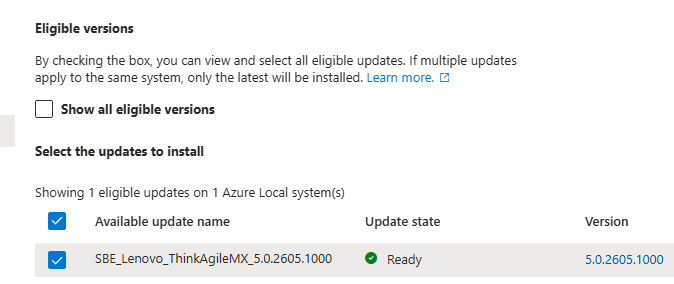
In our case the portal listed SBE_Lenovo_ThinkAgileMX version 5.0.2605.1000 as the eligible update:
We can also inspect the current SBE state on the cluster with:
Get-SolutionUpdateEnvironment |
    Format-Table SbeFamily, HardwareModel, CurrentSbeVersion, State
This gives us the SBE family name and hardware model that the platform recognizes, which is what we use to look up the correct download at the OEM.
HINT For Lenovo ThinkAgile MX, the SBE download page is here: https://thinkagile.lenovo.com/MX/SBE_Std/. Match the family name and version from
Get-SolutionUpdateandGet-SolutionUpdateEnvironmentagainst what is listed there before downloading anything.
The Lenovo version mismatch
This is where it got tricky. The version reported by Get-SolutionUpdate did not match anything Lenovo had listed on their public ThinkAgile MX SBE download page. Older versions were available - but not the exact one the solution update was asking for. (They have fixed this issue after writing this article).
In our case Lenovo had Lenovo_SBE_5.0.2601.1002.zip listed as the latest download, while the cluster was asking for 5.0.2605.1000. The trick was to manually edit the download URL on Lenovo’s site to point directly at the version number reported by Get-SolutionUpdate - the file was hosted, just not surfaced in the web UI. Once the URL was constructed manually, the correct SBE package downloaded without any issue.
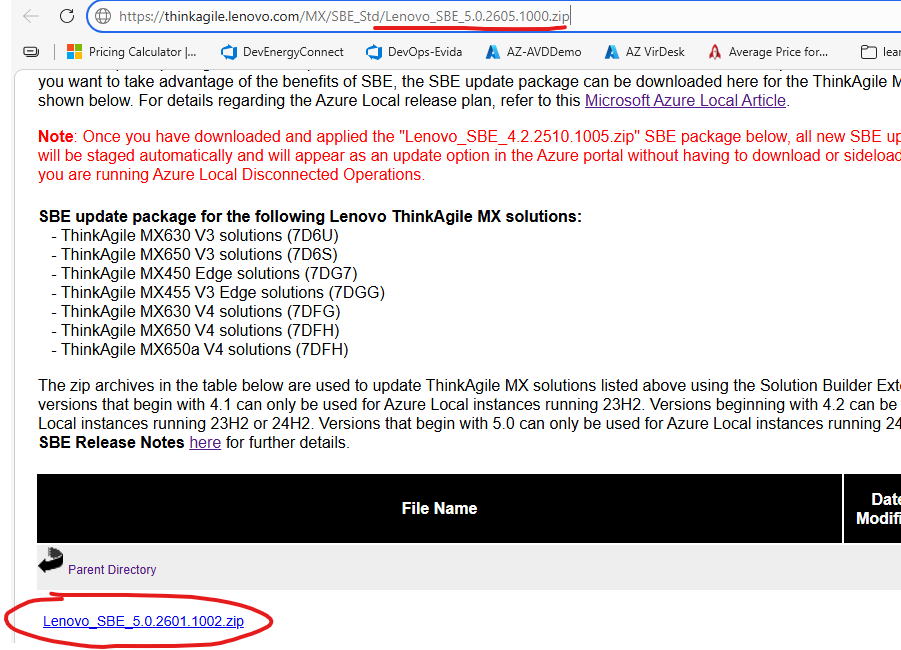
Note that this behavior may change at any time - if you cannot find the version listed publicly, contact Lenovo support if this hack does not work.
Stage the SBE on the cluster
Once the correct SBE archive is downloaded, copy it to the cluster’s infrastructure storage and add it to the solution update:
Add-SolutionUpdate -SourceFolder 'C:\ClusterStorage\Infrastructure_1\SBE\<your-SBE-folder>'Then verify that the SBE is now in Ready to install state:
Get-SolutionUpdate | Where-Object PackageType -EQ 'SBE'When the SBE shows as ready, the original solution update can be retried and will continue past the SBE stage.
Final remark
The lesson here is twofold. First, do not trust the OEM website alone to tell you which SBE version you need - always start with Get-SolutionUpdate and Get-SolutionUpdateEnvironment on the cluster, and use those values as the source of truth. Second, if the exact version is not listed publicly, the file may still be hosted by the OEM - but the safer route is always to ask OEM support to confirm the correct build before staging it.
A big thanks to Jesper Bøgholm for digging through this and sharing the full process so I could write it up.
Have feedback on this post?
Send me a message and I'll get back to you.