Azure Local - Fix: RDMA validation failure during deployment settings validation
Intro
During Azure Local deployment, the settings validation step can fail with a generic error that gives no real indication of what is wrong:
Could not complete the operation. 200: Deployment Settings validation failed.
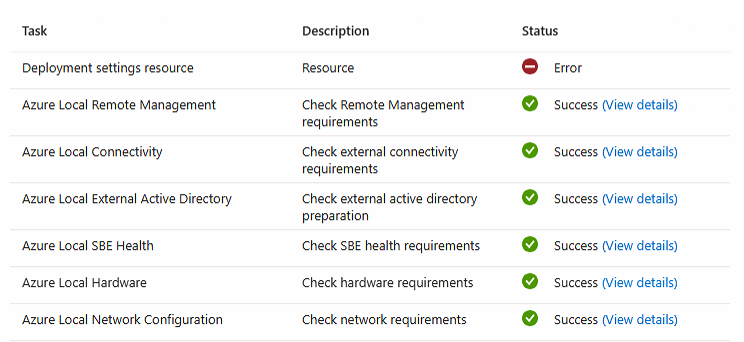
The validation UI shows “Check network requirements” as SUCCESS, which makes the failure even more confusing. The actual cause is buried in a log file and requires a separate PowerShell validation run to surface. In this article I will walk through how to find the real error, what causes it, and how to fix it.
Symptom
Deployment settings validation fails before deployment starts. The error shown in the portal or wizard is:
Triggering deployment settings validation call...
Could not complete the operation. 200: Deployment Settings validation failed.
The “Check network requirements” step shows SUCCESS. The first “Deployment settings resource” step fails. No further detail is shown in the UI.
Diagnosing the actual error
Step 1 — Find the latest MAS log file
Connect to one of the Azure Local nodes and list the most recent unattended answer files:
Get-ChildItem "C:\MASLogs" -Filter "Unattended-*.json" |
    Sort-Object LastWriteTime -Descending |
    Select-Object -First 3
Note the filename of the most recent file — you will use it in the next step.
Step 2 — Run network validation against the log file
Run Invoke-AzStackHciNetworkValidation referencing the answer file and both nodes. Adjust node names and credentials to match your environment:
$answerFilePath = "C:\MASLogs\Unattended-2026-08-13-15-10-08.json"
$userName = "Administrator"
$secPassWord = ConvertTo-SecureString "<your-password-here>" -AsPlainText -Force
$hostCred = New-Object System.Management.Automation.PSCredential($userName, $secPassWord)

$sessions = @()
foreach ($node in @("azlnode01", "azlnode02")) {
    $sessions += New-PSSession -ComputerName $node -Credential $hostCred -ErrorAction Stop
}

$result = Invoke-AzStackHciNetworkValidation `
    -DeployAnswerFile $answerFilePath `
    -PSSession $sessions `
    -ProxyEnabled $false `
    -PassThru `
    -ShowFailedOnly

$result | Format-List Name, Status, Description, AdditionalData
Step 3 — Read the output
Look for the failing test in the output:
Name           : AzStackHci_Network_Test_NetAdapter_RDMA_Operational
Status         : FAILED
Description    : The adapter driver reports RDMA Enabled, but the platform (BIOS) reports
                 OperationalState=False, so RDMA cannot actually run.
This test fails on both nodes for adapters that have RDMA enabled in the driver but OperationalState=False at the platform or BIOS level. Azure Local requires RDMA to be actually operational — not just configured in the driver.
Root cause
RDMA is enabled in the network adapter driver on the nodes, but the underlying platform (BIOS/hardware) is reporting OperationalState=False. Azure Local validates that RDMA is genuinely operational before deployment proceeds, and this platform-level mismatch causes the validation to fail.
Resolution
Nested virtual lab environments
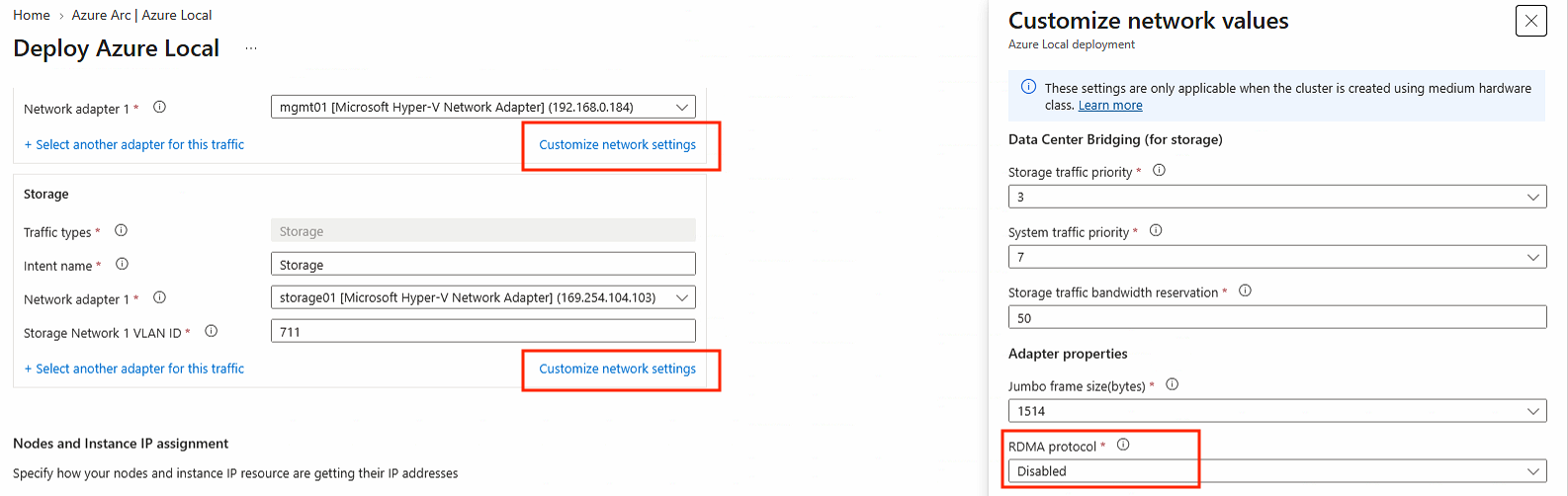
In a nested virtual lab the physical NIC does not support RDMA. The fix is to disable the RDMA protocol in the deployment wizard before deploying.
Note: You cannot modify network intents on an existing cluster object. You must delete it and start the wizard again.
-
Delete the existing Azure Local cluster object in the Azure portal.
-
Re-run the deployment wizard from the beginning.
-
On the network intents step, select “Customize network settings”.
-
For both the
Compute_ManagementandStorageintents, disable the RDMA protocol. -
Complete the wizard and proceed with validation —
AzStackHci_Network_Test_NetAdapter_RDMA_Operationalshould now pass.
Physical hardware environments
If you are on physical hardware and RDMA should genuinely be operational, use one of the following approaches instead:
| Option | Action |
|---|---|
| Enable in BIOS | Enable RDMA/RoCE in BIOS — contact your hardware vendor for the specific setting |
| Override via answer file | Set OverrideAdapterProperty=True and NetworkDirect=Disabled on the affected network intents in the answer file |
Final remark: The generic validation error message gives no indication that RDMA is involved. If you hit Deployment Settings validation failed with a passing network requirements check, always run Invoke-AzStackHciNetworkValidation against the latest MAS log file first — it surfaces the actual failing test and saves significant time compared to guessing.
Have feedback on this post?
Send me a message and I'll get back to you.