Azure Local - Fix: Deployment stuck at Resolve deployment requirements
- Intro
- Root cause
- Diagnosis
- Fix: manually resume the deployment
- Monitoring progress after resuming
- This may happen more than once
Intro
During an Azure Local initial deployment, the Azure portal may show the step Resolve deployment requirements with no progress for an extended period. The expected duration for this step is 15–45 minutes. If it exceeds an hour without advancing, the deployment could have silently halted.
This typically happens because Azure Local uses a scheduled task (RelogonUsingLocalAdminBeforeDeployment) to resume deployment after a required node reboot. No error is surfaced in the portal.
In this article I will walk through how to diagnose whether this is what happened and how to manually resume the deployment.
Root cause
After the seed node reboots during deployment, the ECEngine callback scheduled task is registered under the lcmuser account and set to run OnStartup. If the auto-logon session for lcmuser does not establish correctly after the reboot, the task never fires and deployment is left waiting indefinitely.
HINT
The Azure portal deployment view will not show an error. It simply stops updating. Always check log file
LastWriteTimewhen the portal appears frozen before assuming something more severe has gone wrong.
Diagnosis
First, check whether the relevant scheduled tasks exist but never ran. Run this on the seed node (typically the first node, e.g. AZHCI01) in an elevated PowerShell session:
Get-ScheduledTask |
    Where-Object { $_.TaskName -match "Deploy|Relogon|ECE|Cloud" } |
    Select-Object TaskName, State, LastRunTime |
    Format-Table -AutoSize
If tasks show State: Ready but LastRunTime is blank or very old, the callback did not fire after the last reboot.
Next, confirm that the deployment logs have gone stale — no activity for more than 30 minutes is a clear sign deployment is not progressing:
$logPath = "C:\CloudDeployment\Logs"
Get-ChildItem $logPath -Filter "*.log" |
    Sort-Object LastWriteTime -Descending |
    Select-Object -First 5 Name, LastWriteTime
If the most recent log file has not been written to for 30+ minutes while the portal still shows Resolve deployment requirements, this is the issue.
In my case, the Resolve requirement step ran from 11:37 PM all the way to 6:58 AM the following morning before I intervened — nearly seven hours with no error shown in the portal:

Fix: manually resume the deployment
Run the following on the seed node in an elevated PowerShell session on the seed node:
Import-Module C:\CloudDeployment\ECEngine\EnterpriseCloudEngine.psd1
Invoke-EceAction -RolePath Cloud -ActionType CloudDeployment -Rerun -Retries 2 -Verbose
Deployment will resume from where it left off. Steps that already completed successfully are not repeated.
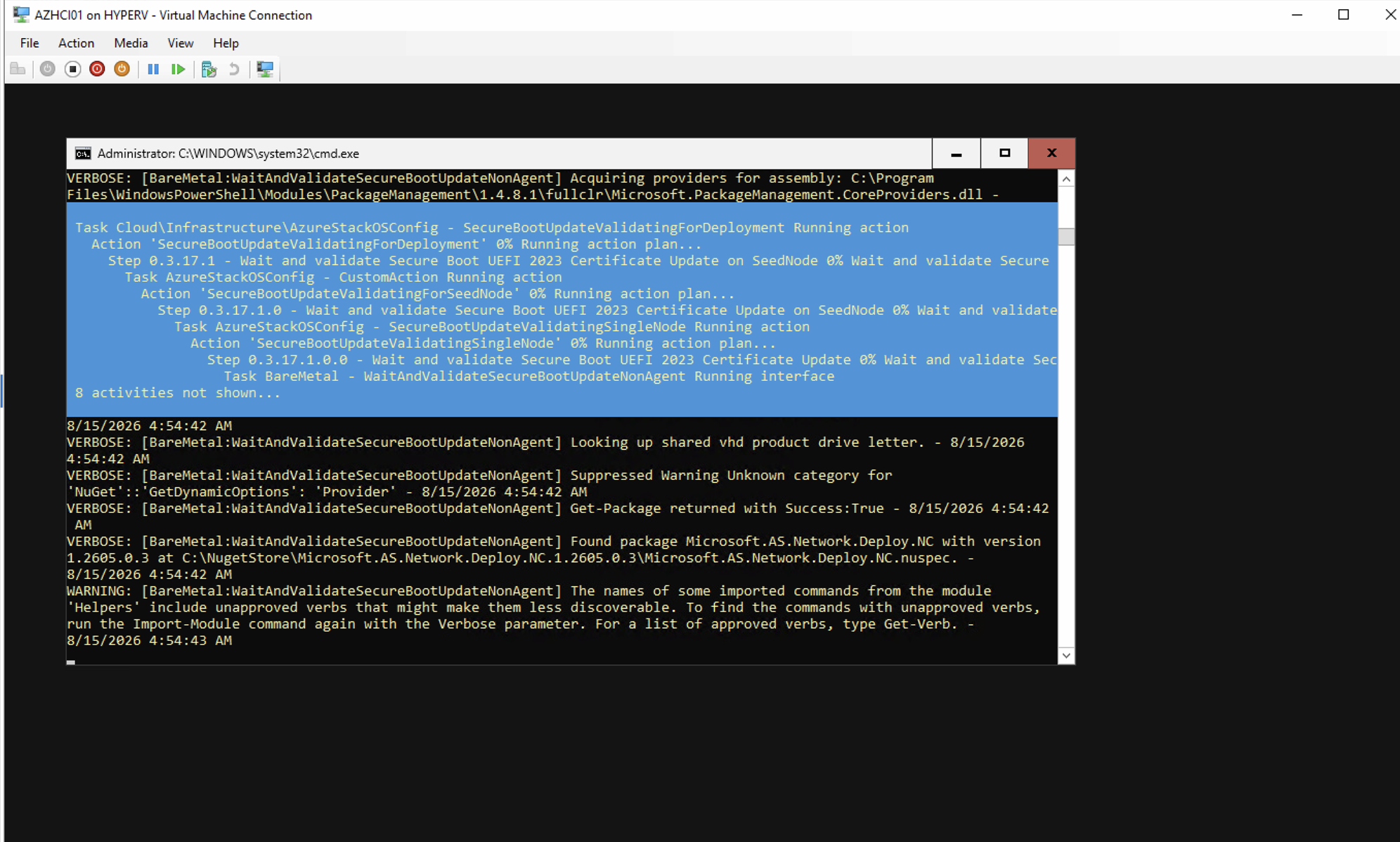
Once the command is running you will see verbose output from the ECEngine working through the deployment steps — visible directly in the VM console if you are connected via Hyper-V Virtual Machine Connection:
Monitoring progress after resuming
After running the resume command, tail the active deployment log to confirm activity has resumed:
$logPath = "C:\CloudDeployment\Logs"
Get-ChildItem $logPath -Filter "*.log" |
    Sort-Object LastWriteTime -Descending |
    Select-Object -First 1 -ExpandProperty FullName |
    ForEach-Object { Get-Content $_ -Wait -Tail 20 }
New log lines appearing every few seconds confirm deployment is progressing. You can also switch back to the Azure portal — the deployment step should start advancing again within a few minutes.
This may happen more than once
Azure Local deployment reboots nodes more than once during initial setup. Each reboot is a potential trigger point for this issue if the lcmuser auto-logon session fails to re-establish. If the portal freezes again on a later step, run the same Invoke-EceAction command again on the seed node — the fix is identical every time.
Have feedback on this post?
Send me a message and I'll get back to you.