Azure Local - Change LCM User
- Intro
- Prepare Active Directory
- Ensure new LCM User is added as local administrator on all nodes
- Execute mitigation script to set new LCM User
- Validate the change
Intro
There can be multiple reasons why you would want to change the LCM User for an Azure Local Stack. Maybe you was not aware of where the LCM User is used within an Azure Local Stack so you used your domain administrator account doing deployment. Maybe current LCM User was used across multiple stacks and now you want to harden your security configuration and switch to one LCM User per stack.
HINT If you have problems with your LCM User, but the user is present in Active Directory, most likely the password just needs to be updated. Follow this guide to rotate secret. However, you might end up need to use this script block to update the LCM User in the ECE Store.
Prepare Active Directory
- Create the LCM User in Active Directory. (Like LCMUser-NAMEOFSTACK to support having multiple LCM Users)
- Open PowerShell on a domain controller and run the following command in PowerShell:
Install-Module AsHciADArtifactsPreCreationTool -Repository PSGallery -Force - Prepare the OU in Active Directory
$password = ConvertTo-SecureString '<password>' -AsPlainText -Force
$user = "lcmuser"
$credential = New-Object System.Management.Automation.PSCredential ($user, $password)
New-HciAdObjectsPreCreation -AzureStackLCMUserCredential $credential -AsHciOUName "OU=ms309,DC=PLab8,DC=nttest,DC=microsoft,DC=com"- Open Group Policy Management and check that block mode is configured on the OU (should already be there because it was a requirement when deploying)
Ensure new LCM User is added as local administrator on all nodes
- (Use MSTSC or PowerShell with: Enter-PSSession -ComputerName NAMEOFNODE) Run this PowerShell command on each node to ensure LCM User is added as local administrator for all nodes:
Add-LocalGroupMember -Group "Administrators" -Member "microsoft\lcmuserPrefix"
Execute mitigation script to set new LCM User
(Use MSTSC or PowerShell with: Enter-PSSession -ComputerName NAMEOFNODE).
- Grab this script below or get it from source in GitHub
- Username should be provided without domain and not contain any special characters
# Prompt for credentials
$credential = Get-Credential

# Validate credentials
try {
    # Attempt to invoke a simple command (Get-Process) on the local machine to validate credentials
    Invoke-Command -ScriptBlock { whoami } -Credential $credential -ErrorAction Stop -ComputerName localhost

    Write-Host "Credential validation successful." -ForegroundColor Green
}
catch {
    Write-Host "Credential validation failed. Please check the username and password." -ForegroundColor Red
    return
}

# Import the necessary module
Import-Module "C:\Program Files\WindowsPowerShell\Modules\Microsoft.AS.Infra.Security.SecretRotation\PasswordUtilities.psm1" -DisableNameChecking

# Print the User Name
Write-Host "Username provided: $($credential.UserName)" -ForegroundColor Cyan

# Validate that the username provided is of the correct format. Username should be provided without domain and not contain any special characters.
if($credential.UserName -match '^[^\\]+(?=\\)|(?<=@).+$')
{
    throw "Please provide user name without domain."
}

# Check the status of the ECE cluster group
$eceClusterGroup = Get-ClusterGroup | Where-Object { $_.Name -eq "Azure Stack HCI Orchestrator Service Cluster Group" }
if ($eceClusterGroup.State -ne "Online") {
    Write-AzsSecurityError -Message "ECE cluster group is not in an Online state. Cannot continue with password rotation." -ErrRecord $_
}

# Update ECE with the new password
Write-AzsSecurityVerbose -Message "Updating password in ECE" -Verbose

$ECEContainersToUpdate = @(
    "DomainAdmin",
    "DeploymentDomainAdmin",
    "SecondaryDomainAdmin",
    "TemporaryDomainAdmin",
    "BareMetalAdmin",
    "FabricAdmin",
    "SecondaryFabric",
    "CloudAdmin"
)

foreach ($containerName in $ECEContainersToUpdate) {
    Set-ECEServiceSecret -ContainerName $containerName -Credential $credential 3>$null 4>$null
}

Write-AzsSecurityVerbose -Message "Finished updating credentials in ECE." -Verbose
Below are the outputs you should look for when running the script:


Validate the change
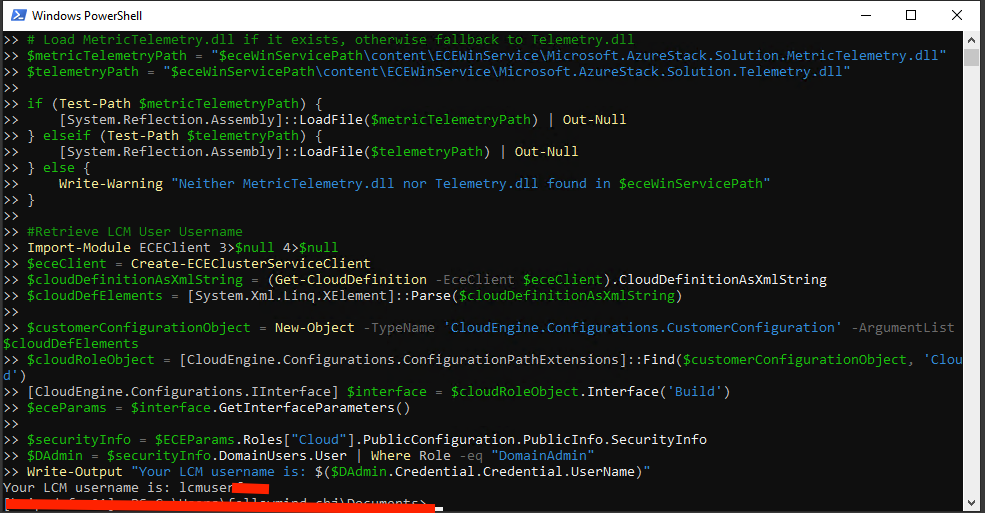
After you have executed mitigation script on all nodes in the stack, you can use this script to check that nodes has the new LCM User configured correctly:
# Retrieve the latest ECEWinService NuGet Version
$eceWinService = Get-ChildItem "C:\Agents" -Directory |
    Where-Object { $_.Name -match 'Microsoft\.AzureStack\.Solution\.ECEWinService\.(\d+\.\d+\.\d+\.\d+)' } |
    ForEach-Object {
        [PSCustomObject]@{
            Path = $_.FullName
            Version = [version]$matches[1]
        }
    } |
    Sort-Object Version -Descending |
    Select-Object -First 1

$eceWinServiceVersion = $eceWinService.Version.ToString()
$eceWinServicePath = $eceWinService.Path

# Load Assemblies
[System.Reflection.Assembly]::LoadFile("$eceWinServicePath\content\ECEWinService\CloudEngine.dll") | Out-Null
[System.Reflection.Assembly]::LoadFile("$eceWinServicePath\content\ECEWinService\Microsoft.AzureStack.Orchestration.Common.Packaging.Contract.dll") | Out-Null
[System.Reflection.Assembly]::LoadFile("$eceWinServicePath\content\ECEWinService\Microsoft.AzureStack.Orchestration.Common.Packaging.dll") | Out-Null
[System.Reflection.Assembly]::LoadFile("$eceWinServicePath\content\ECEWinService\Microsoft.Diagnostics.Tracing.EventSource.dll") | Out-Null

# Load MetricTelemetry.dll if it exists, otherwise fallback to Telemetry.dll
$metricTelemetryPath = "$eceWinServicePath\content\ECEWinService\Microsoft.AzureStack.Solution.MetricTelemetry.dll"
$telemetryPath = "$eceWinServicePath\content\ECEWinService\Microsoft.AzureStack.Solution.Telemetry.dll"

if (Test-Path $metricTelemetryPath) {
    [System.Reflection.Assembly]::LoadFile($metricTelemetryPath) | Out-Null
} elseif (Test-Path $telemetryPath) {
    [System.Reflection.Assembly]::LoadFile($telemetryPath) | Out-Null
} else {
    Write-Warning "Neither MetricTelemetry.dll nor Telemetry.dll found in $eceWinServicePath"
}

#Retrieve LCM User Username
Import-Module ECEClient 3>$null 4>$null
$eceClient = Create-ECEClusterServiceClient
$cloudDefinitionAsXmlString = (Get-CloudDefinition -EceClient $eceClient).CloudDefinitionAsXmlString
$cloudDefElements = [System.Xml.Linq.XElement]::Parse($cloudDefinitionAsXmlString)

$customerConfigurationObject = New-Object -TypeName 'CloudEngine.Configurations.CustomerConfiguration' -ArgumentList $cloudDefElements
$cloudRoleObject = [CloudEngine.Configurations.ConfigurationPathExtensions]::Find($customerConfigurationObject, 'Cloud')
[CloudEngine.Configurations.IInterface] $interface = $cloudRoleObject.Interface('Build')
$eceParams = $interface.GetInterfaceParameters()

$securityInfo = $ECEParams.Roles["Cloud"].PublicConfiguration.PublicInfo.SecurityInfo
$DAdmin = $securityInfo.DomainUsers.User | Where Role -eq "DomainAdmin"
Write-Output "Your LCM username is: $($DAdmin.Credential.Credential.UserName)"
Have feedback on this post?
Send me a message and I'll get back to you.