Azure Local - Assign Microsoft Cloud Security Benchmark v2 across multiple subscriptions
- Intro
- Why MCSB v2 and Azure Local?
- Prerequisites
- Assign MCSB v2 via the portal
- Assign MCSB v2 via PowerShell
- View compliance results
- A note on exemptions
Intro
When you manage Azure Local clusters across multiple subscriptions in the same tenant, keeping a consistent security posture across all those virtual machines can be a challenge. You could visit each subscription one by one and assign policies manually, but that does not scale — and it is easy to miss one.
The Microsoft Cloud Security Benchmark v2 (MCSB v2) is a built-in Azure Policy initiative that provides a comprehensive set of security controls. Crucially, it includes policies that target Azure Arc-enabled machines — which is exactly what the virtual machines running on your Azure Local clusters are. By assigning MCSB v2 at Management Group scope, a single policy assignment covers every Azure Local cluster and their VMs across all subscriptions under that management group.
In this article I will walk through what MCSB v2 covers for Azure Local VMs, how to assign it at management group scope using the portal and using PowerShell, and how to view compliance results in Microsoft Defender for Cloud.
Why MCSB v2 and Azure Local?
When an Azure Local cluster is registered to Azure, both the cluster nodes and the virtual machines running on the cluster are onboarded as Arc-enabled machines (resource type Microsoft.HybridCompute/machines). Azure Policy does not distinguish between them — it evaluates anything Arc-enabled that falls within the assigned scope. This means MCSB v2 will audit both your Azure Local nodes and your Azure Local VMs with a single assignment.
MCSB v2 includes controls across areas such as:
- Endpoint protection — is a supported antimalware solution deployed and reporting?
- Vulnerability assessment — is a vulnerability assessment solution enabled on the machine?
- System updates — are the machines receiving OS updates?
- Guest configuration — are security baselines applied to the OS?
- Log collection — is the Azure Monitor Agent deployed and sending logs?
All of these apply to both nodes and VMs. If you have already configured Insights and log collection for your stacks, you will be well on your way to a good compliance score on the log collection controls. Read more about setting up Insights: Azure Local - Insights and Logging - Part 1
HINT MCSB v2 policies are audit policies by default — they report on compliance but do not enforce changes to your VMs. This makes it safe to assign broadly without risk of disrupting running workloads.
Prerequisites
Before assigning the policy initiative, make sure you have the following:
- A Management Group that contains all the subscriptions where your Azure Local clusters live. If you are not yet using Management Groups, you can create one in the Azure portal under Management Groups.
- The Owner or Resource Policy Contributor role on the target Management Group scope.
- Azure Local VMs that are Arc-enabled. If your cluster is deployed and registered to Azure, this is already the case.
- Optionally: Microsoft Defender for Cloud enabled on the subscriptions, so you can view compliance results in the Security Posture dashboard.
Assign MCSB v2 via the portal
- Open the Azure portal: https://portal.azure.com
- Navigate to Policy.
- In the left menu, select Definitions.
- In the search box, search for
Microsoft Cloud Security Benchmark v2. - Find the initiative named Microsoft Cloud Security Benchmark v2 (type: Initiative) and click it.
- Select Assign.
- On the Basics tab:
- Set Scope to your Management Group.
- Leave Exclusions empty unless you have specific subscriptions or resource groups to exclude.
- Give the assignment a meaningful Assignment name, for example:
MCSB v2 - Azure Local Fleet.
- On the Parameters tab: review the parameters. Most controls have sensible defaults. You can set the effect for individual controls here if you want to override the default AuditIfNotExists behaviour.
- On the Remediation tab: for this audit initiative, no remediation task is needed unless you have DeployIfNotExists policies you want to trigger.
- Select Review + create, then Create.
After a few minutes, the assignment will propagate to all subscriptions under the Management Group. Initial compliance evaluation can take up to 24 hours.
Assign MCSB v2 via PowerShell
As always, you can also assign the initiative using PowerShell — useful if you want to document and repeat this as part of your baseline setup.
First, authenticate and find the built-in initiative:
Connect-AzAccount

# Find the Microsoft Cloud Security Benchmark v2 initiative definition
$initiative = Get-AzPolicySetDefinition | Where-Object {
    $_.Properties.DisplayName -eq 'Microsoft Cloud Security Benchmark v2'
}

$initiative | Select-Object Name, @{N='DisplayName';E={$_.Properties.DisplayName}}
Then assign it at Management Group scope:
$managementGroupId = 'your-management-group-id'   # Replace with your MG ID

$assignmentParams = @{
    Name                = 'mcsb-v2-azure-local-fleet'
    DisplayName         = 'MCSB v2 - Azure Local Fleet'
    Scope               = "/providers/Microsoft.Management/managementGroups/$managementGroupId"
    PolicySetDefinition = $initiative
    Description         = 'Assigns Microsoft Cloud Security Benchmark v2 to audit VMs across all Azure Local clusters in the tenant'
}

New-AzPolicyAssignment @assignmentParams
HINT If you want to exclude specific subscriptions from the assignment (for example a sandbox subscription), add the
-NotScopeparameter with the resource IDs of the subscriptions you want to exclude.
$assignmentParams['NotScope'] = @(
    '/subscriptions/your-sandbox-subscription-id'
)
View compliance results
Once the policy has had time to evaluate (up to 24 hours after assignment), you can view results in two places:
Azure Policy compliance
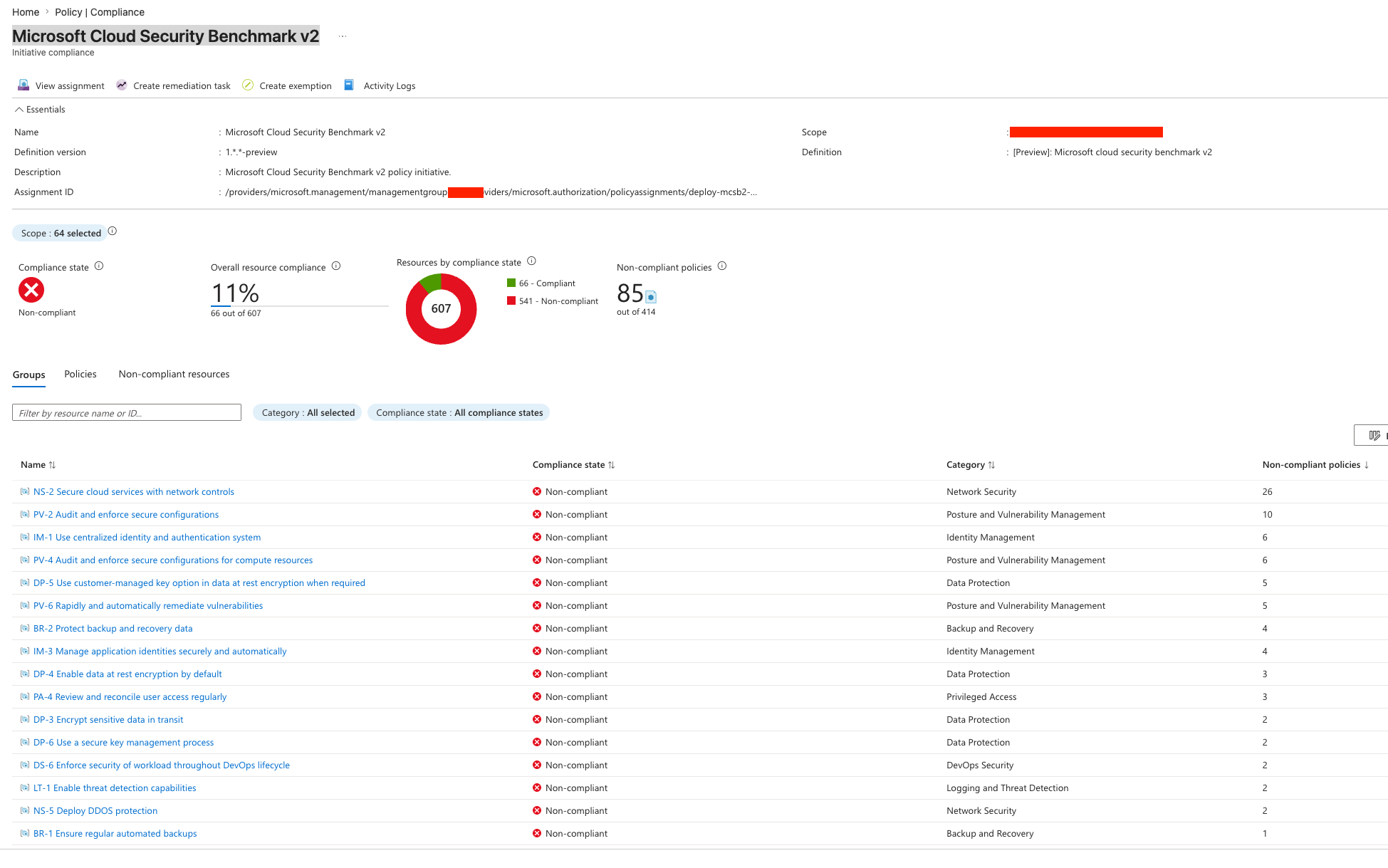
Navigate to Policy → Compliance in the Azure portal. Select the MCSB v2 assignment. Here you can drill down per subscription, resource group, and individual resource to see which VMs are compliant and which controls are failing.
Microsoft Defender for Cloud
If Defender for Cloud is enabled on your subscriptions, the Microsoft Cloud Security Benchmark v2 assignment also shows up in Defender for Cloud → Regulatory compliance. This gives you a richer view with control descriptions, remediation guidance, and the ability to create exemptions directly.
Read more about managing Defender for Cloud exemptions: Microsoft Defender for Cloud – exemptions using REST API
A note on exemptions
Not every MCSB v2 control will apply equally to every Azure Local VM. For example, you may have VMs that deliberately do not have a vulnerability assessment solution deployed, or legacy VMs that cannot receive certain guest configuration policies. In those cases, use Azure Policy exemptions to suppress the finding rather than letting it skew your overall compliance score.
You can manage exemptions at subscription, resource group, or individual resource scope — ensuring your compliance view stays meaningful and actionable.
Final remark: Assigning Microsoft Cloud Security Benchmark v2 at Management Group scope is one of the highest-value, lowest-effort things you can do to get visibility into the security posture of your Azure Local VMs at fleet scale. Start with audit mode, review the findings, and then decide where remediation or exemptions are appropriate.
Have feedback on this post?
Send me a message and I'll get back to you.